Flux 3 Max AI Video Generator
Create Flux 3 Max videos from text, an opening image with an optional ending frame, or positioned keyframes. Review five to twenty seconds, supported resolutions, reasoning effort, audio and the complete credit quote in one workspace. Start with a paired example, then make the direction your own.
Video workspace
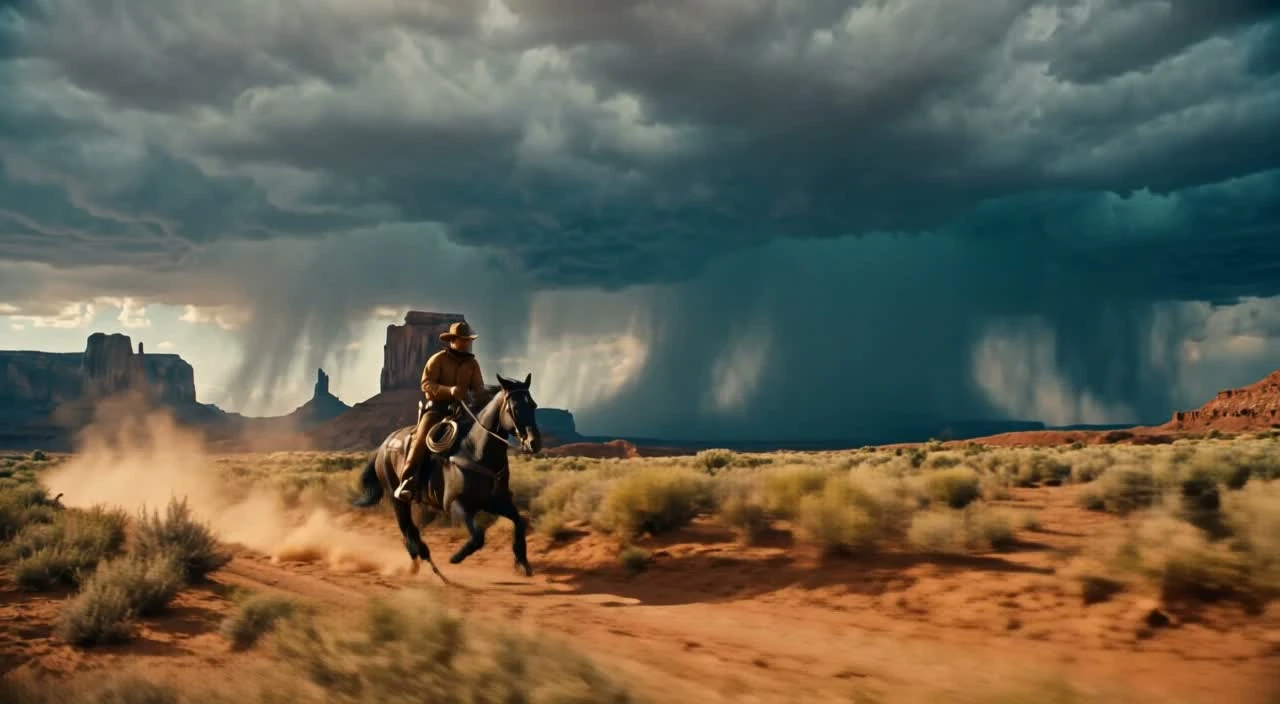
Mail at full gallop
1/59View prompt
Track two mounted couriers exchanging a leather mailbag without stopping. Preserve the horses’ gait, dusty terrain and warm vintage-film appearance.
Text prompt; no reference upload required.
Flux 3 Max · 10s · 720p · 16:9
Official fal reference paired with a site-authored brief. Parameters and inputs are reusable; the displayed output is not a verified reproduction of the adapted prompt.
fal Research / Black Forest LabsIntroduction
Flux 3 Max: make a deliberate first take
Flux 3 Max connects a written idea to a short audiovisual scene. Begin with a specific visible action and a clear reason for the shot.
Understand the model
Flux 3 Max is a post-trained video model from fal Research, developed with Black Forest Labs. This page connects its actual text, image and keyframe endpoints through our shared workspace. Flux3.tools is an independent service, with its own account, credit balance and history.
Choose a useful starting point
A sentence can establish an unfamiliar setting, while a photograph fixes a visual starting point. With Flux 3 Max, choose the input that removes the biggest uncertainty in your idea. Keep a short first test focused on one action before attempting a complicated sequence.
Keep the reference in perspective
The reference clips below demonstrate visual directions rather than guaranteed outcomes. Flux 3 Max examples use stored source media paired with adapted briefs. Reusing one prepares editable inputs; it does not prove that the changed prompt will recreate the same motion, faces or soundtrack.
How to use
How to create a Flux 3 Max video
- STEP 1
Flux 3 Max: choose the workflow
Select text, an opening image with an optional end frame, or positioned keyframes. Load a paired reference to prepare the appropriate inputs.
- STEP 2
Flux 3 Max: direct the movement
Describe the subject’s action, camera path and sound. Confirm input order, and give keyframe positions enough room for each transition to develop.
- STEP 3
Flux 3 Max: review the settings
Choose five to twenty seconds, resolution, audio and reasoning effort. Read the complete quote, then sign in and submit when ready.
- STEP 4
Flux 3 Max: inspect the result
Open Creation History, watch the entire output and review sound separately. Keep the successful prompt and settings before revising one variable.
Features
Flux 3 Max: describe motion that can be reviewed
A useful Flux 3 Max prompt describes changes over time. Name the subject, establish the camera and keep the intended ending understandable.
Build a continuous action
For Flux 3 Max text generation, write an action with a beginning and a finish: a courier approaches, exchanges a bag and rides onward. Connect those stages with a camera instruction. Concrete verbs make the resulting clip easier to judge than a list of decorative adjectives.
Separate subject and camera
The subject can move while the camera remains still, or the camera can follow a quiet subject. Explain which relationship you want Flux 3 Max to preserve. Start with one dominant movement, then add a lighting condition or environmental detail that supports the scene.
Use time with intention
Choose five to twenty whole seconds in the Flux 3 Max workspace. A small gesture may need less time than several connected actions. Longer duration also increases the quote, so reserve extra seconds for movement that serves the brief rather than an unspecified cinematic atmosphere.
Flux 3 Max: animate an established composition
Flux 3 Max image-to-video starts from an opening image and accepts an optional ending frame. Explain what should change between those visual anchors.
Prepare the opening frame
Choose a clear image whose subject, framing and lighting already suit the scene. Flux 3 Max accepts PNG, JPEG and WebP references here. Review the upload preview before creating, especially small lettering, faces, hands and any object that should remain recognizable throughout the clip.
Direct the transition
For Flux 3 Max image-to-video, describe movement instead of repeating everything visible in the photograph. Ask for a measured camera approach, a head turn or a product rotation. Include a preservation instruction for the specific face, silhouette or design detail that matters to your result.
Give the finish an anchor
An optional end image tells Flux 3 Max where the scene should arrive. Keep it compatible with the opening image, and explain the movement joining them. A change in viewpoint needs a plausible camera path; an unrelated destination can make an already difficult transition less predictable.
Flux 3 Max: place the important visual moments
Flux 3 Max keyframes turn a collection of images into a timed plan. Use a few meaningful milestones before filling every available position.
Order the references
The Flux 3 Max keyframe workflow accepts one to ten images. Arrange them according to the intended sequence and check every preview. A product can begin closed, open midway and finish fully displayed; a journey can progress through several related environments with a consistent subject.
Set positions on the timeline
Place Flux 3 Max keyframes at unique whole frame indices on the twenty-four-frame-per-second timeline. The maximum is the selected duration multiplied by twenty-four. Leaving positions blank spreads references evenly. Explicit positions are useful when a particular action needs more time than the surrounding transitions.
Write the connecting movement
Keyframes establish moments, while the Flux 3 Max prompt directs what happens between them. Describe the action and camera path connecting each stage. Avoid treating the supplied pictures as a promise of exact interpolation; inspect the full result for unwanted changes between the visible milestones.
Flux 3 Max: choose effort, sound and output together
Flux 3 Max exposes practical controls for different briefs. Review them as a group before comparing one test with another.
Adjust reasoning effort
Flux 3 Max offers low and high reasoning, with high selected by default. Higher effort can increase generation time. Compare the same prompt and input images when testing this control, and save the setting with your notes so that a later comparison remains meaningful.
Describe the soundtrack
Audio is enabled by default in Flux 3 Max and can be switched off. Describe environmental sound, dialogue or a restrained musical direction when it helps the scene. Review speech, timing and background sound separately after generation; a convincing picture does not establish that the audio is suitable.
Check the output format
Choose 720p or 1080p in Flux 3 Max. The provider describes the higher-resolution option as upscaling. Use an explicit aspect ratio when delivery framing matters, and inspect the returned file dimensions. A resolution label alone does not guarantee that every source composition has identical pixel dimensions.
Flux 3 Max: keep the quote and result traceable
Flux 3 Max uses the same account, credit history and private output handling as the rest of this workspace. Preparing a draft stays separate from submitting it.
Read the complete quote
For Flux 3 Max, one cent of published model cost converts to one credit, with the complete task rounded upward. Review duration and resolution before submission. The current provider promotion has an end date; the pricing document and live control show the active schedule rather than an indefinite discount.
Follow the task through history
Submitting Flux 3 Max reserves the displayed credits. A successfully archived result captures that reservation; confirmed submission rejection or terminal failure refunds that stage. Temporary polling or storage trouble keeps the task pending. An uncertain submission is reconciled without automatically sending a second generation request.
Review before sharing
Watch every Flux 3 Max result from beginning to end, including the ending and any audio. Check continuity, recognizable details, text and intended use before downloading or publishing. Keep the prompt, input order and settings with your selection, and revise one meaningful variable for the next test.
Example prompts
Flux 3 Max: a continuous action
Track two mounted couriers exchanging a leather mailbag without stopping. Preserve the horses’ gait, dusty terrain and warm vintage-film appearance.
Flux 3 Max: a positioned journey
Connect the supplied desert scenes into a journey: pause on the mesa, follow the galloping horse, approach the distant storm, and settle beside the night campfire. Maintain the rider and landscape palette, with hooves, wind and a restrained score.
Creation checklist
Review the inputs, quote and output.
Reference provenance
Public Fal demonstrations are archived in our storage with source records. Their adapted prompts and reusable inputs are starting points; paid reproduction has not been tested on this site.
Separate model capabilities
Flux 3 Max is a video model. Flux 3 Image creates and edits still images; original Flux 3 has separate Draft, cache-based Enhance and video-extension workflows.
Measure the whole request
Provider inference timings exclude some preparation, decoding and upload work. Queue and service conditions also affect completion. No fixed generation time or permanent leaderboard rank is promised.
Browsing examples and preparing prompts is free. Generation requires a signed-in account with sufficient credits. Designated generated-file downloads require a purchase history.
Flux 3 Pricing and Credit Plans
Cancel anytime
Lite
50% off0.025 / credit
Billed $ yearly179· Save $179.8
Video Models



Image Models



- Includes Flux 3 and all premium models
- Up to 1 batch generation task
- Standard generation speed
- Standard generation success rate
- Standard customer support
- Commercial Use License
Standard
50% off0.017 / credit
Billed $ yearly299· Save $299.8
Video Models
Image Models
- Includes Flux 3 and all premium models
- Up to 4 batch generation tasks
- Priority processing speed
- High generation success rate
- Priority customer support
- Commercial Use License
Pro
50% off0.014 / credit
Billed $ yearly599· Save $599.8
Video Models
Image Models
- Includes Flux 3 and all premium models
- Up to 10 batch generation tasks
- Fastest generation speed
- High generation success rate
- Dedicated account manager
- Commercial Use License
Max
50% off0.012 / credit
Billed $ yearly1,199· Save $1,199.8
Video Models
Image Models
- Includes Flux 3 and all premium models
- Up to 10 batch generation tasks
- Fastest generation speed
- High generation success rate
- Dedicated account manager
- Commercial Use License
Pay safely and securely with























FAQ
Frequently asked questions
What is Flux 3 Max, and is this the official website?
Flux 3 Max is fal Research’s post-trained video model, developed with Black Forest Labs. Flux3.tools provides an independent account and workspace that submits to the documented Fal endpoints. It is not the official website of either company.
Which workflows are connected on this page?
Flux 3 Max supports text-to-video, image-to-video with an optional end frame, and positioned keyframes. Use the workflow controls to select them. Original Flux 3 Draft, Enhance and Extend remain available through the separate Flux 3 Video tool.
Does Use This Prompt spend credits or reproduce the source exactly?
Use This Prompt loads a Flux 3 Max draft, including paired inputs and settings where available. It never starts a paid task. Reference videos are paired with adapted briefs, so identical results have not been verified or promised.
How are Flux 3 Max generation credits calculated?
The shared quote engine converts the selected duration and resolution’s cost at one cent per credit, rounding the complete task upward. Promotional and list schedules are dated. Review the current quote; stale quotes are rejected before reserving credits.
What happens if a Flux 3 Max request fails or remains pending?
Confirmed submission rejection or provider failure refunds the reserved generation credits once. Polling, network or storage uncertainty remains pending for reconciliation. A previous successful task is not refunded because a later task fails. Payment refunds follow the separate refund policy.
CTA
Make your next take with Flux 3 Max
Start with a clear action or paired reference, choose the supported settings and review the quote. Your existing workspace, account and task history stay together.
Create with Flux 3 Max